Changing Your IT Services Provider: 5 Tips for a Smoother Switch

Let’s face it: You probably rely on your IT services provider a lot. And if there’s a substantial amount of knowledge locked up with your provider, it feels easier to stay the course — even if you know you’re outgrowing their ability to deliver the support and services you need.

With a little pre-planning, you can switch providers with confidence that you won’t lose access to critical systems and suffer the lack of business continuity that comes with it. There’s no reason to let fear of the unknown keep you from making a transition that you know will be better in the long run for the growth and prosperity of your business.

Why Switch?

A reluctance to make a change is understandable, but also unfortunate because there are many legitimate reasons for making a switch. You might feel that you’ve outgrown your current provider, or are frustrated because the level of responsiveness or quality of IT support isn’t what it could be. But in our experience, the #1 reason for switching IT providers is that the provider failed to provide proactive consulting and business planning. A true IT services partner shouldn’t just be content to keep your systems running—they should endeavor to use IT to grow your business, and make it more efficient and profitable.

Transition Tips

Preparing to switch IT providers involves taking a thorough inventory of your IT environment to make sure that the switch won’t leave you without access to systems that are critical for business operations. Especially if you’ve been with the current provider for a while, key pieces of information or infrastructure might be in their hands rather than yours, and that’s a problem. Here are five areas to check:

  1. Administrative control. Look at network equipment, servers, and applications — whether on-premises or in the cloud — and make sure you have the current logins and passwords. Verify you have the right credentials by logging in, and ensure that those accounts give you full administrative control.
  2. Ownership of equipment. Are your data and applications on servers that are leased or owned by the outgoing provider? Similarly, who owns the firewalls, switches and other networking equipment? If you don’t have ownership of the infrastructure and licenses, you’ll need to anticipate the costs of a buyout or transfer, or of purchasing new equipment.
  3. Internet service provider, telephony and other connectivity. Are the service contracts with you, or the outgoing IT provider? Don’t overlook the registration of your domain name and control of the DNS records.
  4. Software licenses. Who holds the software licenses for Office 365 and any line of business applications your team uses?
  5. Continuity planning. Before you pull the switch, consider plans for how you’ll keep your business running through the change. The incoming provider can help, but changing IT providers is more complex than simply turning over the keys to someone new. You’ll need a well-thought-out project plan—especially if the change involves moving to new applications or other infrastructure changes.

Avoiding Lock-In

It’s an unfortunate fact of life in our industry that service providers sometimes put themselves in a position where they own infrastructure or licenses, or keep administrative credentials to themselves. The more dependent you are on them, the easier it is for them to hold onto your business even after you’ve outgrown their service. But if you’re thinking about changing providers now, or can see a need to change at some point in the not-so-distant future, it’s time to start making sure you have the keys to your own kingdom.

At FIT Solutions, we share the administrative logins and full network documentation with our customers, using a third-party service to ensure full transparency. We also have a thorough and documented onboarding process to ensure the change goes smoothly. If you’ve outgrown your current IT provider, we’d love to start a conversation. Call us at 888-339-5694.

Business Email Compromise (BEC): Hidden Danger in Legacy Protocols

Attempts to compromise business email accounts are much more common than you might think, and when they’re successful, criminals are able to make off with large sums of money. Typically they aim to gain control over the email account of an executive or administrative assistant with the authority to direct or execute financial transactions. They masquerade as that person and inject themselves into an email thread, to initiate a transaction or re-direct a transaction, tricking the business into moving the funds into a bank account controlled by the criminal.

We’ll describe how criminals often gain access to account credentials, and then explain how to close the vulnerability. But first, a few words about just how pervasive these account hijackings are. Proofpoint conducted a six-month study of this kind of attack and found that:

  • Approximately 60% of Microsoft Office 365 and G Suite tenants were targeted
  • Roughly 25% of Office 365 and G Suite tenants were breached as a result
  • Criminals achieved a 44% success rate in breaching an account at a targeted organization

Account Takeover Technique: IMAP Password Spraying

Email services typically enforce a lockout when a password is mis-entered multiple times, which is considered a telltale sign that some unauthorized person is trying to access the account. Password spraying is a brute-force technique that aims to get around the account lockout. Instead of focusing on a single account at a time with a large list of possible passwords, the criminal does the inverse. The attacker starts with a relatively short list of common passwords, and “sprays” them across multiple email accounts at multiple organizations, taking care that the attempts on each individual account and organization are spaced far enough apart that they don’t trigger a lockout. In fact, on the access logs, each attempt looks like a routine login failure rather than part of a coordinated attack.

Here’s the other important thing to know about these attacks. They commonly access the mail server using the Internet Mail Access Protocol (IMAP) — a standard that’s been around for more than 30 years. The criminals use this route because it’s enabled by default on most servers, it’s easy to write scripts for it that automate the attack, and most of all, it doesn’t support more secure methods of authentication beyond simple usernames and passwords.

Sprayproofing the Environment

Business email compromise (BEC) has become such a huge problem that we routinely recommend that every business that uses Office 365 or G Suite implement multi-factor authentication (MFA), and require it any time a user connects from a new location or device. Here’s the rub, though: the IMAP protocol doesn’t support MFA. When IMAP is enabled, it gives criminals a way to access the server that bypasses MFA, leaving it wide open for password-spraying.

So, we recommend disabling the IMAP protocol and its older cousin, post-office protocol (POP3). POP3 isn’t used as often for spraying attacks, but it has the same vulnerabilities as IMAP. Very few users should be using IMAP or POP3 to access their email. For those that do, we recommend they connect to Office 365 with Outlook Anywhere, which is more secure.

If you’re reluctant to disable IMAP and POP because it might inconvenience a few users, realize that both protocols are on the way out. For example, Microsoft has announced it will stop supporting simple username/password authentication for IMAP and POP3 in October 2020.

At FIT Solutions, we make it our business to stay on top of vulnerabilities like this to keep our clients’ businesses safe. It’s a great example of the value-add you get with our managed IT services. If you would like to know more, give us a call at 888-339-5694.

PointClickCare or MatrixCare: Which for Senior Care?

If you’re considering an electronic health records (EHR) system for your LTPAC or assisted living facility, our experience with senior care clients tells us that there are two popular choices: PointClickCare and MatrixCare.

Which should you choose for your facility? Well, it depends.

First, let’s get the basics out of the way. Both are built with a strong LTPAC focus, which separates them from EHR systems such as Epic or Cerner that are more often found in hospitals and integrated health systems. Both are strong on HIPAA security compliance. Both include electronic medication administration record (eMAR) functionality. Both are delivered through a software-as-a-service (SaaS) model, which means you don’t have to maintain an onsite server, and updates, patches and data backups are handled for you. In our experience, both companies offer great support.

They differ in a few ways as well, and while we can’t recommend one system over the other, we’ll share those differences. Which system you choose depends on which of these issues matters more to you.

  • Device support. MatrixCare is a Microsoft partner, and that’s reflected in the operating systems and devices it supports. The clinicians’ devices must run the Windows operating system and Internet Explorer. MatrixCare supports non-Windows client devices via either a Citrix virtualization client or Windows Terminal Services. While those scenarios are well-documented and supported, running the Citrix or Windows Terminal Server is the responsibility of your IT team. On the other hand, PointClickCare supports desktops, laptops, tablets and smartphones that run Windows, MacOS, ChromeOS or Android, and all of the popular web browsers (although not all modules support all combinations). If you want to run PointClickCare in a virtualized environment, it’s not technically supported by the company, but some facilities are doing so successfully.
  • User Interface. The MatrixCare user interface is sleeker and more modern, but in our opinion, this is mostly a matter of aesthetics. Both are equally functional.
  • Reporting and Analytics. PointClickCare offers reporting, but creating custom reports and analytics requires using a feature called Data Relay. It allows you to copy most of the data onto another server for running analytics. By contrast, MatrixCare has an Analytics Suite module that lets you make use of Microsoft Azure and PowerBI to develop analytics and create custom dashboards. Both of these scenarios require some degree of knowledge by your users and IT team.
  • Audit trails. Our clients report that MatrixCare is stronger in this area, particularly at survey time.
  • Redundancy. Both systems recommend that facilities have two Internet connections in case one connection goes down. However, in the event of an outage, PointClickCare suggests hourly backups of the eMAR records so clinicians can revert to paper charting. MatrixCare provides a mobile app that can work offline, and syncs the records back to the eMAR module once the connection becomes available again.

At FIT Solutions, we’re familiar with both of these senior-care EHR systems and our IT specialists are happy to support you, regardless of your choice. If you would like to know more, give us a call at 888-339-5694.

4-Step Strategy for Onboarding Senior Care Acquisitions

Consolidation through mergers and acquisitions is a fact of life in long-term, post-acute care (LTPAC). A typical scenario is a large, multi-facility operator buying a freestanding facility or small chain of facilities, bringing economies of scale that can make the acquired facilities more profitable. Part of what is acquired is the technology infrastructure. We’re often asked to come in as the technology consultant as part of these transactions. We help the acquirer understand what they’re getting and create a roadmap for shifting the operations from the old umbrella to the new. Allow us to share the benefit of our experience.

1. Start with a Thorough Inventory

Even if the seller has inventory records, inevitably, something gets overlooked. Often, there are items that were never documented. Current services and providers might have been switched and the information was never updated. Put together a very thorough list of categories of items to be considered, from computers to network infrastructure to service providers. Think from a process perspective as well: How is data being backed up? What about remote access? This can lead you to items that might be otherwise missed.

Then, sit down with someone from the seller’s organization who can help you work through the list to gain a fuller picture of the inventory. A good approach is to start from the perspective of the service-point entrance and work through the various segments of the network. What services actually come into the building? Typically, there is, at minimum, Internet, phone and television from one or more service providers that goes to a network room. From there, how do the services propagate out to the rest of the environment? What is the network layout? Finally, arrive at the end nodes and take into consideration the OS, systems accessed and the software and licenses involved.

2. Don’t Overlook Anything: Do an Onsite Analysis

Even with a detailed inventory, items get overlooked. Going onsite will fill in the gaps — and undoubtedly, there will be gaps to find. Sometimes, you may find items that individual departments installed without the knowledge of the IT department, or network closets that were nearly forgotten. Many facilities were not originally built with IT requirements in mind, so network infrastructure can be behind unmarked doors or in other unexpected locations. Once, we found a forgotten and critical medical alert server hidden behind a potted plant. Another time, there was an entire wing with several dozen wireless access points, but the points were hidden in the drop ceiling and were not included with the inventory.

Ask for administrator credentials to log in to the systems. Check network speeds and talk with IT and end-users to understand what the environment is like.

3. Clarify What’s Going to Get Transferred

When it comes to transferring IT assets, sellers have different policies. To limit their exposure to compliance issues raised post-sale, some will pull all end-user systems and servers offsite before the new owner takes over. Others transfer the computing hardware, but wipe the systems clean. Still others are willing to leave everything as-is, and simply turn the keys over. Even if the computing assets will remain in place, it is likely that the acquirer will be switching to new EHR and other clinical systems, as well as business systems, to put the organizational efficiencies into place that they expect to realize. The pre-existing hardware and systems might not be up to the task. Bottom line? No two onboarding scenarios are alike, so make sure both sides are clear on expectations.

4. Develop a Transfer Plan

Given the above, some difficult operational and financial decisions might need to be made. The decision to retain the pre-existing equipment or replace it has to be balanced against the financial realities of the upfront costs, alongside the operational downsides of systems that can’t meet performance standards.
Above all, LTPAC, senior care and skilled nursing facilities deliver care 24/7. There is no option to shut things down for a weekend to make the switch, as might be possible in some other industries. Making older equipment work could be false economy, because it typically involves workarounds or finding fixes for systems that are past support. That means the transition takes longer and front-line care workers need to contend with more downtime or even resort to paper charting. All of this needs to be accounted for to arrive at a transfer plan that makes operational and financial sense, adheres to regulations, and preserves continuity of care.

At FIT Solutions, we’ve done dozens of onboarding projects and have complete systems and procedures in place for streamlining IT transfers in merger and acquisition scenarios. We account for the business realities and care-delivery issues, as well as the IT aspects. And since every scenario is different, we never stop learning, refining and improving our methodology. If you’re considering an acquisition, let us pave the path for you. Give us a call at 888-339-5694.

Ransomware Wakeup Call: 4 Tips to Protect Yourself

It’s a sad fact that criminals often prey on the most vulnerable. This was proven true in the ransomware attacks that impacted LTPAC facilities during November. Not only were the facility operators victimized, but sudden lack of access to medical records profoundly impacted their ability to care for patients and residents.

This incident was first reported by journalist and investigative reporter Brian Krebs. More than 100 facilities were impacted, and the ransomware cut off access to critical systems, including access to patient records, client billing, phone systems, internet service and email. The scope of the attack was audacious. The threat to peoples’ lives was deplorable. But most galling to us, as IT service providers, is that the incident was so preventable. More on that below.

Why Healthcare is Such a Tempting Target

In this case, the perpetrators were identified as a Russian gang, an adversary well-known among security experts. What’s clear here is that criminals don’t care that their actions could actually endanger peoples’ lives. They go after healthcare because lives are at stake, and they know that many healthcare organizations don’t have extra dollars around to invest in security.

Smaller and mid-size organizations are often the targets of choice. Health systems serving smaller communities, community hospitals, group medical practices, specialty centers, rehabilitation providers and dental practices have all been ransomware targets. Some have even had to close their doors after an attack.

A Few Ounces of Prevention Can Go a Long Way

Here are some of the ransomware prevention measures that we recommend and put in place for our clients. These are standard security practices, and aren’t necessarily more expensive than what you’re doing right now.

  1. Enact an anti-ransomware group policy on computers. Use a Windows Group Policy Object that prevents unknown executable files from running in temporary folders or in the AppData folder. Almost every single ransomware variant we have seen runs from one of these locations.
  2. Segregate cloud resources. Use a provider that can deliver a private hybrid cloud — not a public cloud where your data and applications are pooled with those of other companies. That protects your company in case another becomes infected with ransomware. You don’t want their problem becoming your problem—and everybody else’s.
  3. Separate backups from network shares. The ultimate protection against ransomware is maintaining regular and up-to-date backups so you can restore from them if an attack encrypts your data and makes it unreadable. But don’t store your backups on your network, accessible through a mapped drive, or the attack could compromise your backups, too.
  4. Bolster your endpoint protection. We’re presuming you already have antivirus in place. Because ransomware is a targeted attack, the criminals take care to alter their executable files, so signature-based antivirus isn’t very effective. Consider switching to an endpoint protection product that employs a “defense in depth” strategy rather than just relying on signatures.

At FIT Solutions, we supply IT services to many senior care organizations including assisted living and LTPAC facilities. We urge you to implement the tips above; you can do them yourself. Of course, if you’d like help, you can always call us at (888) 339-5694. We’d be happy to partner with you to protect your organization from ransomware.

5 Practical Tips for Year-End IT Budgeting and Procurement

As year-end approaches, many of our customers take a critical look at their budget and budget-planning processes. That can involve 1) looking at the current year’s budget for opportunities to make potential procurements in order to get those expenses in before the year-end, as well as 2) setting the budget for the coming year.

Here are a few things to consider as you set priorities for new investments and upgrades. Don’t overlook changes that can lower your operating costs.

Items for Consideration

  1. License renewals. This is perhaps the most crucial item, since if you allow licenses to lapse, you lose the use of critical software and systems. License considerations are especially important this year, with Windows 7 end-of-life coming January 14, 2020. We covered this topic in an earlier post, especially the compliance implications. Include Windows 10 upgrades in your budgeting plans. Look at the age of your Windows 7-licensed workstations, and decide whether it makes more economic sense to replace them entirely with new Windows 10-licensed systems.
  2. Aging equipment. There’s a tendency to wait until something fails before you replace it. But if a system is near or past the end of the warranty period, it might be better to replace it proactively and avoid the costs and inconveniences of downtime while you wait for replacement of a broken machine.
  3. Network refresh. Take a closer look at your networking equipment, such as switches, routers and wireless access points. If they’re older, possible failure is a concern, but you also need to determine whether they can keep up with current network standards and expectations. Would a faster or more-capable switch improve performance or manageability? Would upgrading your older wireless access points or adding new ones improve network coverage or get rid of dead spots?
  4. Security. You can never be too secure, but there are a few additions that will improve your security posture immensely. One is free: enforcing a password policy that requires strong, regularly changed passwords. Another that is inexpensive or free is implementing multi-factor authentication (MFA) anytime a user logs on for the first time, or from a different machine or remote location. There are third-party solutions, or you can use the MFA capability built into Office 365.
  5. Service providers. Take a look at your monthly fees paid to service providers, and consider whether a different solution could give you a lower price, better performance, or new features. Feature-rich voice-over-IP systems have much to recommend them over traditional telephone services, and are generally less expensive. The same is true of replacing an older Internet connection with a vendor who delivers over fiber. If you have a large number of printers, there are printer management services that can save you money on consumables by controlling the use of color toner and ink, and curbing unnecessary printing.

Planning Proactively

At FIT Solutions, we help our clients look at the big picture of their technology, project future needs and plan proactively. One of the services we offer is the development of a Technology Business Plan that considers many of the areas above and more. It includes a Technology Infrastructure Roadmap that looks at short-, near- and long-term needs on a quarter-by-quarter basis so that you can budget effectively, accurately and proactively.

This holistic view will guide you to a more stable infrastructure, tighter security and increased performance while serving as a guideline for prioritizing and decision-making. If you’d like to get started, call us at (888) 339-5694.

Outlook Security: Why You Should Deploy MFA for Office 365

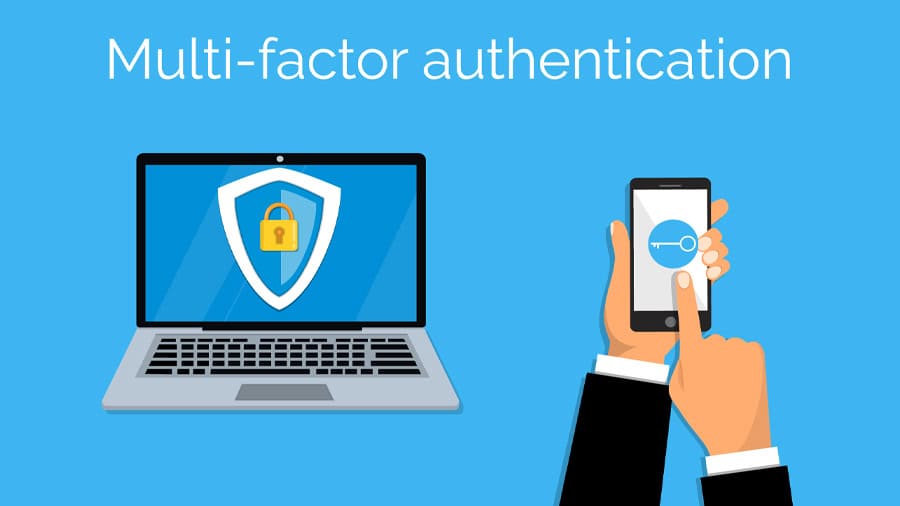
Multi-factor authentication, or MFA (sometimes known as two-factor authentication, or 2FA), is recommended whenever basic usernames and passwords aren’t enough for protecting sensitive logins.

If you’ve ever been asked to confirm your identity by entering a code sent to your phone, you’ve used MFA. The method is widely used for online banking accounts, to bolster security when employees remotely access corporate sites, and to help satisfy HIPAA requirements. More and more, though, we’re advising its use to protect all access to Office 365.

We’re making this recommendation because of the experiences of some of our newer clients. It’s a sad fact that organizations often discover they need our security services only after they’ve been victimized. Several have turned to us after making tens of thousands of dollars in payments that were never received, because the money was sent to fraudulent bank accounts. That’s when they called us in to untangle what happened.

Who’s Reading My Emails?

We’ve found a new breed of criminals who specialize in hijacking email accounts. They’re very sophisticated, expert in covering their tracks, and victims are none the wiser — until it’s too late and the money’s gone.

It all starts with compromised login credentials that criminals use to gain access to one or more individuals’ email accounts. The perpetrator either tricks the individual into giving up the credentials with a phishing email, or simply purchases lists of stolen login credentials on the dark web. Once access is obtained, the criminal lurks and learns, watches and waits. The goal is to find out who moves the money and how. Who are the approvers? Who gives the instructions? Who executes the transactions?

Or Worse, Who’s Sending My Emails?

Less sophisticated criminals would be content to send a bogus invoice. This new sort is looking for legitimate transactions conducted in the normal course of business. They intercept those transactions by issuing instructions to send the money to different accounts, masquerading as the authorized worker. They’re sending these emails from the actual mailboxes, complete with signatures, so the communications look legitimate. Of course, because these are sent using the real email accounts, the compromised users would see the bogus messages in their outbox, or the inbox would contain replies to messages they never sent. To avoid detection, the criminal sets rules in the Outlook account to immediately delete the bogus messages based on the subject line.

Here’s an example of a sophisticated criminal attack; this happened to an engineering firm with about 20 employees. The criminal had the email credentials for the employee responsible for payroll, and also knew, from reading the emails, who the firm’s third-party payroll provider was. Trying the employee’s email credentials on the payroll account revealed that the employee used the same password in both places. Now it was simple to log in to the payroll provider and re-route all the direct deposits to accounts the criminal controlled.  An entire month’s payroll was lost before the theft was discovered.

Detection and Prevention

There are two approaches to dealing with these kinds of attacks. One is detection, through SOC monitoring. SOC monitoring issues alerts for suspicious email access, such as a user accessing from a different location or device, or a user simultaneously logged in from two locations or devices. Either of these is an indicator of unauthorized access of an email account.

Prevention is where MFA comes in. In addition to username and password (something the user knows), MFA adds an additional factor (something the user possesses). The additional factor is the user’s smartphone. Unless the criminal also steals the employee’s phone, the compromised login credentials are useless. There are several approaches to implementing MFA:

  1. Some third-party applications that do single sign-on have MFA capabilities. Examples include Okta and Duo. Microsoft Azure also supports MFA.
  2. Office 365 has the ability to natively enable MFA through the Microsoft Authenticator application. However, some companies have issues with mandating that employees install specific applications on their personal smartphones. If the company doesn’t reimburse employees for their phone use, this becomes a concern for the HR department.
  3. Office 365 also supports native MFA by sending a one-time passcode to the employee’s phone via a text message. This gets around the reimbursement issue because it doesn’t require loading a specific application on the phone. Plus, the simplicity of the approach allows employees to self-enroll through an eight-step process that requires less than two minutes to complete. The impact on the employee is minimal, because the one-time passcode is required only when the employee is logging in from an unknown location or device.

At FIT Solutions, our managed IT services include implementing the multiple forms of MFA. We also perform SOC monitoring through our cybersecurity offering, SOCBOX. You can learn more about FIT Solutions managed IT services, or better yet, call us at (888) 339-5694.

8 Steps to Mobile Device Security for Senior Care Environments

National Cybersecurity Awareness Month, observed each October, promotes heightened awareness of the importance of computer security issues. This year’s theme is “Own IT. Secure IT. Protect IT.”

The first — Own  IT — refers to taking responsibility for security. While much of the focus of the messaging is on individual security, there are some timely reminders for business environments as well. This is especially true for our FIT Solutions customers who use mobile tablets to access EHR and other clinical systems.

Your internal network contains protected health information, and for HIPAA compliance, you must be absolutely sure that any connected devices are secure. Here are the best practices we recommend:

  1.  Secure Your Wi-Fi.
    This is vital for LTPAC environments. Offering Wi-Fi to patients and their guests is a standard business practice, and is essentially an expectation.  Keep the guest Wi-Fi on a network that is separate from the clinical network, and establish a firm policy to prohibit your staff from sharing the clinical network password with patients or guests. Business-class Wi-Fi access points allow you to set up separate networks and prevent cross-traffic between them. If your staff brings their own smartphones to work, only allow them to access the guest network. You might offer them a third and separate network that allows some access, but still prevents their devices from accessing clinical data. Given the possibility of an unsecured device leading to a breach of patient data, you simply must allow only devices that you can directly control and secure to access medical records.
  2. Require Endpoint Security Software.
    Any device that connects to your network is an endpoint with access to your network’s data. PCs are no longer the only vulnerable point; Android devices are especially susceptible, and criminals are increasingly targeting tablets running iOS. Make anti-malware software part of the standard configuration, and set it to trigger regular updates.
  3. Fortify Your Logins. 
    A tablet or other device that has access to medical data must be locked with a passphrase to prevent unauthorized use by visitors who might pick it up. In addition to a strong password policy, the best practice is to enable multi-factor authentication for any access to the clinical network. These measures protect you against unauthorized use of the device as well as against criminals guessing passwords or using stolen credentials to gain access. In addition, hide the SSID so you’re not broadcasting the name of the clinical network.
  4. Mandate VPN Use.
    Mobile devices can be susceptible to eavesdropping. Take advantage of the strong encryption offered by a VPN by implementing a VPN for access to the clinical network if the device needs to leave the secure network. Look for one that also supports multi-factor authentication to protect the VPN logins.
  5. Protect Against Malicious Apps.
    One of the biggest mobile-device risks is applications that pose as something useful or fun, but are actually designed to steal data. Establish policies that limit or block the use of third-party software on your clinical devices.
  6. Develop and Require a Secure Configuration.
    Establish a standard, secure configuration for devices that connect to the clinical network.  This includes requiring a lock code or password for access, preventing access of other wireless networks, and either hiding the device from Bluetooth discovery or, better still, disabling Bluetooth altogether.
  7. Enable Remote Lock and Wipe.
    Be sure you are able to remotely lock the device to prevent its use if it is ever lost or stolen. Ideally, the devices don’t store any data at all and are only used to access or update the patient records. But if they do hold any data, or as an extra measure of protection, ensure you can wipe the data from the device as well. If the device is found, you can simply re-image it from a backup.
  8. Conduct Mobile Security Audits.
    Hire an outside firm to annually audit your mobile security and perform penetration testing. Testing using the same mobile devices that you use in your environment will uncover potential issues before a criminal discovers them.

We encourage you to use National Cybersecurity Awareness Month to take a serious look at your security and address any shortcomings. If you would like assistance implementing these measures or an evaluation of your HIPAA compliance posture, FIT Solutions is here to help. Call us today at 888-339-5694.

Windows 7 End-of-Life (EOL): How to Maintain HIPAA Compliance

You may soon be facing a HIPAA compliance headache on the workstations in your healthcare facility. Microsoft support for Windows 7 and Windows Server 2008 ends on January 14, 2020. 

No more security patches will be issued after that date. This puts those operating systems at odds with the HIPAA administrative safeguards, which include the specification for “protection from malicious software,” specifically “procedures for guarding against, detecting, and reporting malicious software.”

The end of support means that workstations running those operating systems will be unpatched against new exploits, leaving them highly vulnerable, and therefore, out of HIPAA compliance.

If you are still running those older operating systems, you’re not alone. Many companies still have Windows 2008 servers and Windows 7 workstations in their environments. While these operating systems are ten years old and newer systems are certainly better, organizations keep using them. They are very stable and continue to do their jobs well. But the longer you hang onto them, the greater the risk to your organization.

First, let’s talk about the risks, and then how to alleviate them without having to purchase all-new systems at once.

Lessons from Past Compliance Audits

After a data breach occurs, history shows that regulators conduct a thorough audit of the affected organization’s entire environment. They look at everything. Although the breach was caused by an employee walking out with a thumb drive that was lost or stolen, every other instance of non-compliance that the auditors uncover is subject to a fine, even if it had nothing to do with the breach. Organizations that have been found using Windows products that were past their end-of-life — such as Windows XP — have been fined for that in the past. Undoubtedly, Windows 7 and Server 2008 will be no exception.

Considering the Alternatives

Under the language of the HIPAA rule, specifications are listed as either required or addressable. “Protection from malicious software” is an addressable specification. That gives organizations a bit of wiggle room. Complying with an addressable specification involves evaluating the risk, considering the measures to mitigate it, coming up with a reasonable alternative that is equivalent, and documenting it. (That’s the short version; here’s the official source on how to meet an addressable specification.)

Let’s say you find it impossible or at least extremely cost-prohibitive to replace all of your out-of-compliance operating systems by January 14. You could address the HIPAA specification by updating a set number of systems every month between now and the end of 2020, until all have been updated. In the meantime, you implement an Endpoint Detection and Response (EDR) monitoring system to keep an eye on the unpatchable systems, as well as use encryption on the systems that hold personal health information (PHI).

Hopefully, you have already performed this sort of analysis across all of the HIPAA specifications as part of your overall compliance effort. HIPAA requires you to perform a risk analysis, have a risk management plan, and document them both. Those are the first documents an examiner will want to see.

At FIT Solutions, we can advise you on all of the aspects of IT that impact your ability to comply with HIPAA. That includes helping you with your risk management and risk assessment plans and documentation, as well as assisting with your Windows 7 and Windows Server 2008 end-of-life planning.

Call us today at 888-339-5694.

Business Continuity for Senior Care: How an SD-WAN Protects Your Patients

Your nursing home or skilled nursing facility likely relies heavily on your Internet connection for delivering patient care.

If your electronic health record (EHR) or electronic medical record (EMR) system is hosted in the cloud, staff access to patient treatment plans, physician orders, medication dosages and other critical information depends on a reliable Internet link. Plus, if you rely on voice-over-IP for your telephone systems, that’s another system that is absolutely critical for patient care. It’s needed for making 911 calls, timely communication with physicians, receiving urgently needed lab results, and the many, many other types of medical information that are routinely handled by phone. What happens if your primary Internet connection fails?

Regulatory Considerations

Regulators are keenly aware of the importance of communication. That’s why Internet uptime is woven into the fabric of healthcare regulations that deal with business continuity and disaster recovery, specific to senior care, at the state and federal levels.

Addressing those requirements is vital for protecting your patients and your organization. Fortunately, there’s a relatively new technology that’s ideal for managing redundant Internet links and providing intelligent failover. SD-WAN stands for Software-Defined Wide Area Network. It’s a mouthful that boils down to a simple idea: using software instructions to intelligently choose between multiple wide area network connections (that is, multiple Internet connections) when sending or receiving data traffic.

Out with the Old — In with the New

Here’s why an SD-WAN is better than the old approach to providing redundant failover. The old method for a backup Internet connection was to maintain one connection as the primary and designate another as secondary. This was an all-or-nothing proposition: The secondary sat idle until needed. The setup required regular testing to verify the secondary was still functional.

An SD-WAN allows both connections to serve as the primary. The software intelligently chooses between the two connections based on various factors, such as the type of traffic (voice or different types of data) and the capability and quality of the connection (available bandwidth, latency and similar parameters). Two or more connections can be actively used, and when one link goes down, the traffic passes to the other automatically and immediately. Here’s how well it works: If you initiate a voice-over-IP call, and then unplug the connection, the SD-WAN switches to the other connection with little or no hint of an interruption in the conversation.

Rather than the secondary connection sitting idle, it can be put to use and effectively increase the available bandwidth. The pooled bandwidth and redundancy make it possible to choose less expensive connections, such as combining a cable and DSL connection rather than more-expensive fiber circuits. If you procure the two connections from different providers, then you’re protected if either provider experiences an outage. The SD-WAN will ensure that access to critical systems will remain.

Modern SD-WAN implementations can be configured without entering traditional network parameters such as IP addresses or port numbers. This makes an SD-WAN especially attractive to organizations that have multiple sites, as is often the case in senior care. SD-WAN technology masks the complexities of maintaining redundant connections and switching them across multiple sites. It just works, which is what we all want from our technology.

At FIT Solutions, we work as advisors to our senior-care clients on multiple aspects of IT. Assistance with the technology aspects of your backup, disaster recovery and emergency preparedness plans is a key part of the offering. We know the legal and regulatory requirements you face, and can provide recommendations on administrative practices, technological implementation and support, or active management of your systems. We can help you determine whether SD-WAN technology — and which of the available options — is right for you. Call us today at 888-339-5694.

Get in touch.

Fill out the form and our team will get
back to you as soon as we can!